
|
Upload a Document or Photo to a Works Order |
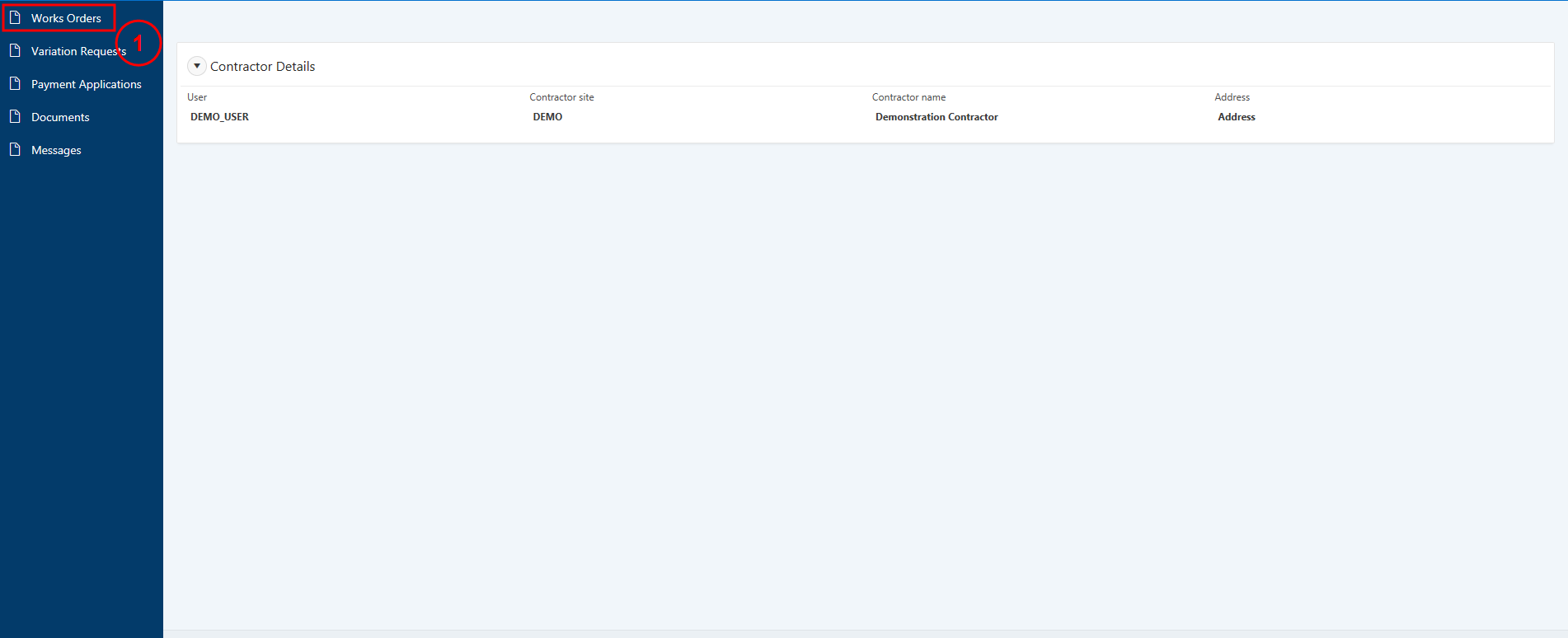
1. Select Works Orders from the navigation menu on the left.
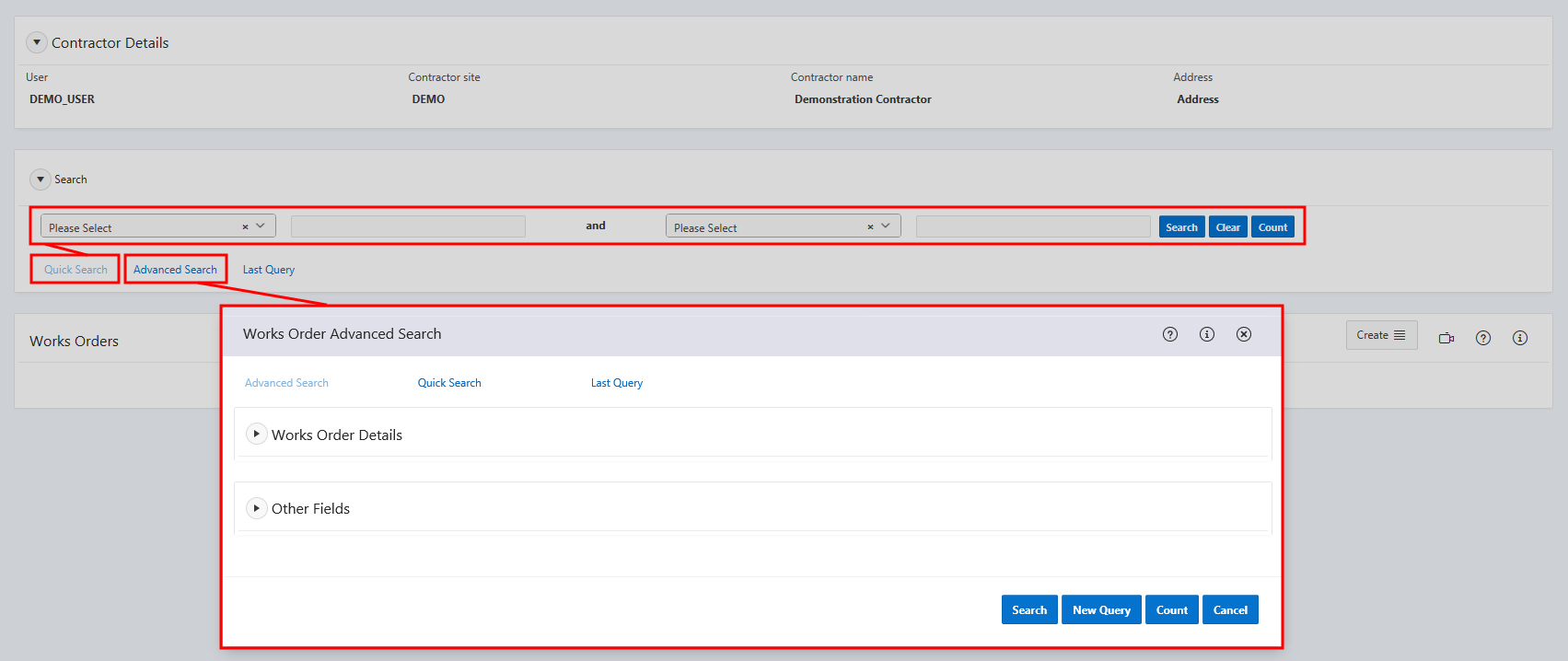
2. Search for the works order from the Quick Search or Advanced Search functions.
3. From the Works Orders region, select the WO Ref for the required works order to open it.

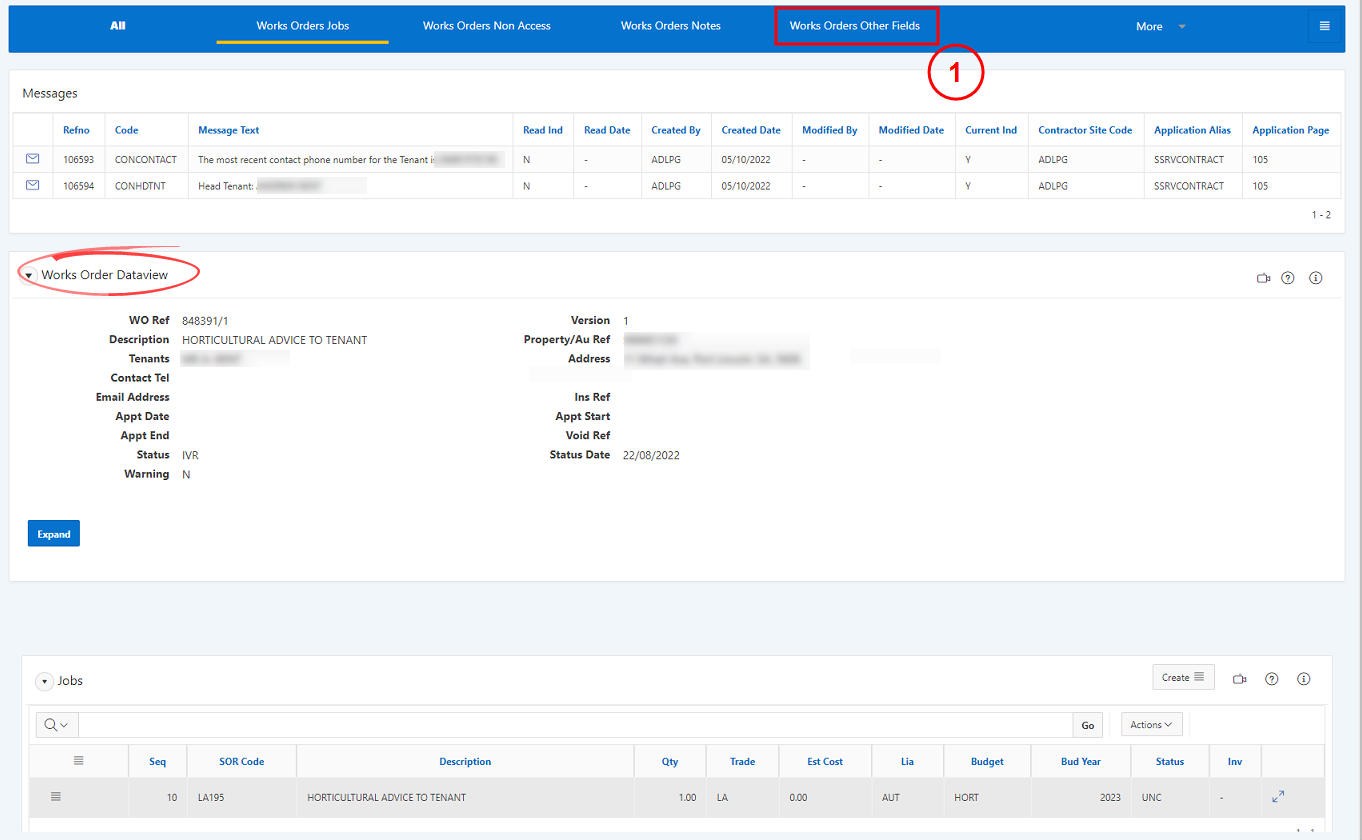
4. From the Works Order Dataview screen, select Works Orders Attachments from the top navigation links.
5. From the Attachments region, select Document Upload.

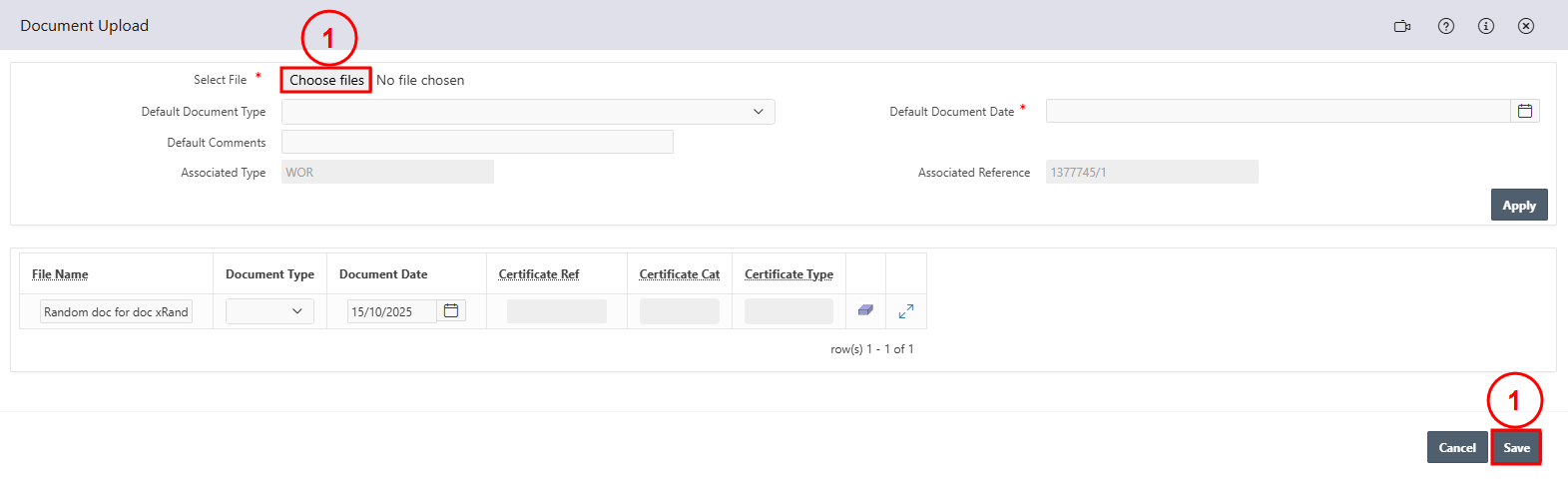
6. On the Document Upload window:
-
in the Default Document Date field enter today's date.
-
in the Select File field, select Choose files to search for and select the required photo or document.

The selected file uploaded will appear in a new window below in the File Name field. Complete the following:
-
in the Document Date field select today's date
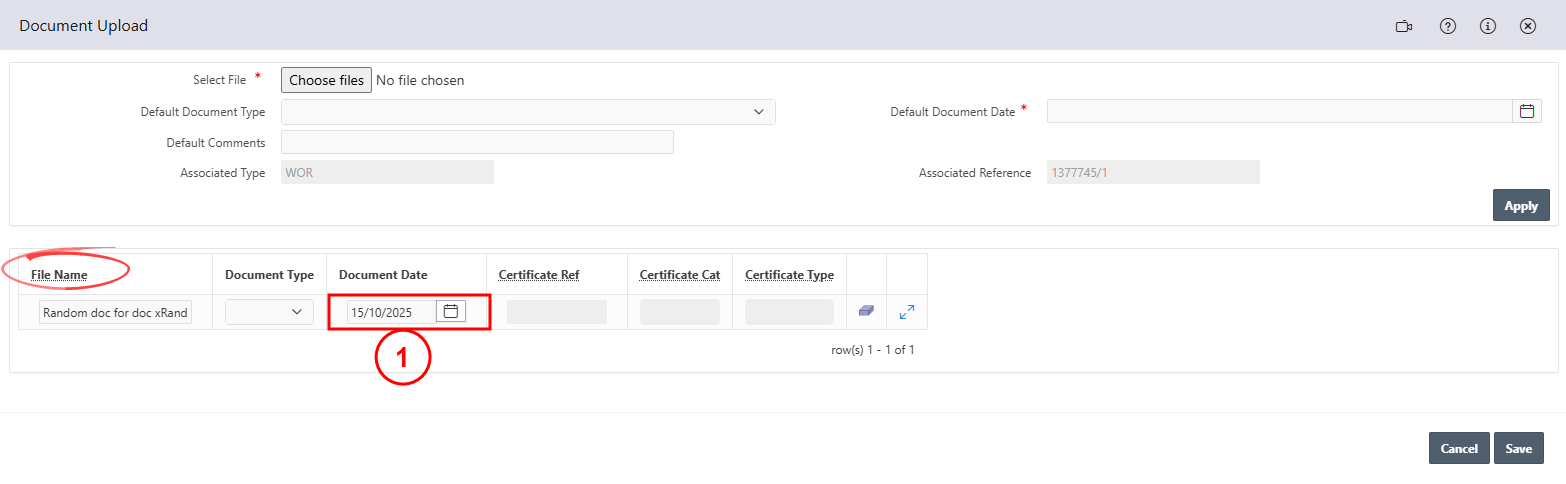
If you want to upload more files, select Choose files and repeat the above process until you have uploaded the desired amount of files. Once you have uploaded the desired number of files select Save.
7. The photo or document will now display under the Attachments region.
